Getting Started
Logging In
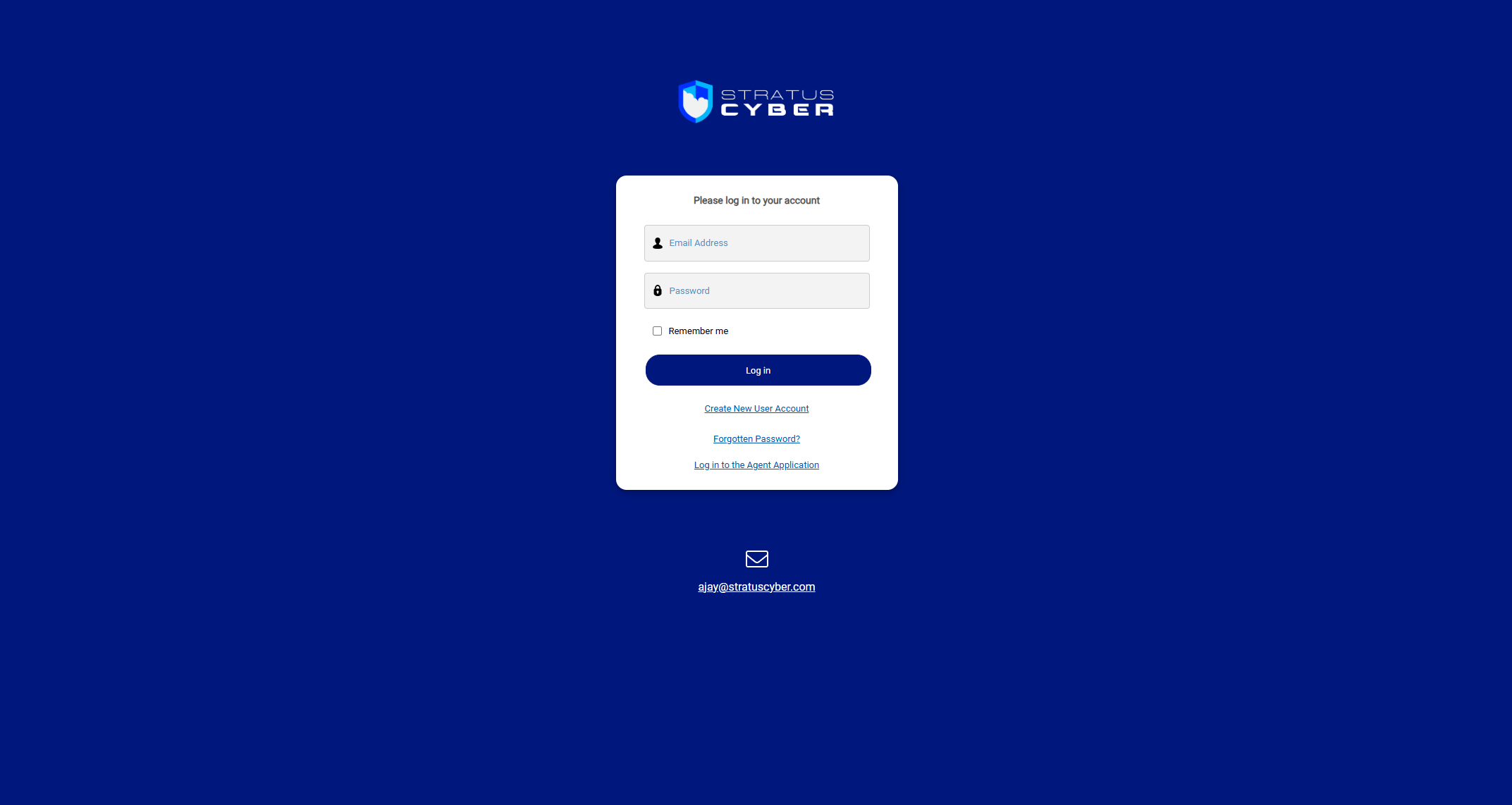
Navigate to your organization's GRC-ITSM portal and sign in with your email address and password. If your instance is configured with SSO, you'll also have the option to sign in using your organization's identity provider instead of local authentication.
Portal Home
After logging in, you'll see the portal home page with quick access to all major sections.
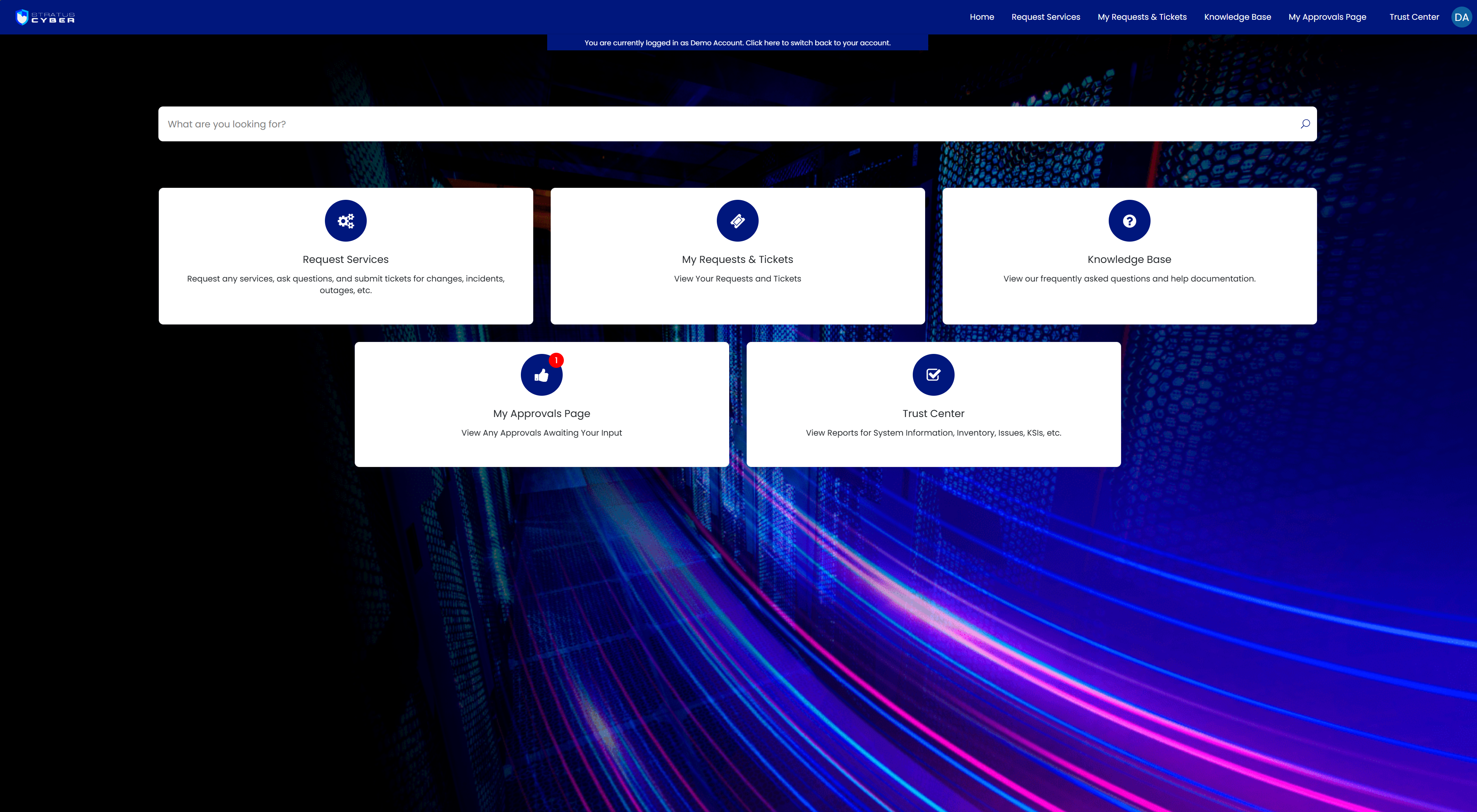
The portal navigation bar provides direct links to:
- Request Services - submit new requests
- My Requests & Tickets - track your existing tickets
- Knowledge Base - browse help articles and documentation
- My Approvals Page - review items awaiting your approval
- Trust Center - access compliance reports and system information
Getting Help
Reaching the portal. Your organization's portal has its own address. Sign in there with your email address and password, or through your organization's identity provider if your instance uses SSO.
No account yet. Select Create New User Account on the portal login page to self-register. A self-registered account gets you signed in, but it reaches nothing until an approved access request grants access. To see Trust Center certification data, your sponsor or point of contact submits a Trust Center Access request under User Access Requests.
Authenticator reset. Resetting a multi-factor authentication (MFA) authenticator is a User Access Request, completed after your identity is verified.
Asking for help. Submit a request under Request Services: General Services for questions and feedback, Incidents and Outages for an outage. Your request becomes a tracked ticket under My Requests & Tickets, so you can follow it there instead of sending email.
For answers to common questions, see Troubleshooting & FAQ.